
See it in action
Guide attention without interrupting your lesson, walkthrough, recording, or live software demonstration.

What PointCue does
PointCue is built for software trainers, tutorial creators, teachers, presenters, and anyone who demonstrates Windows apps on screen. It runs quietly from the notification area and stays ready through customizable global hotkeys.
Pointer & cursor
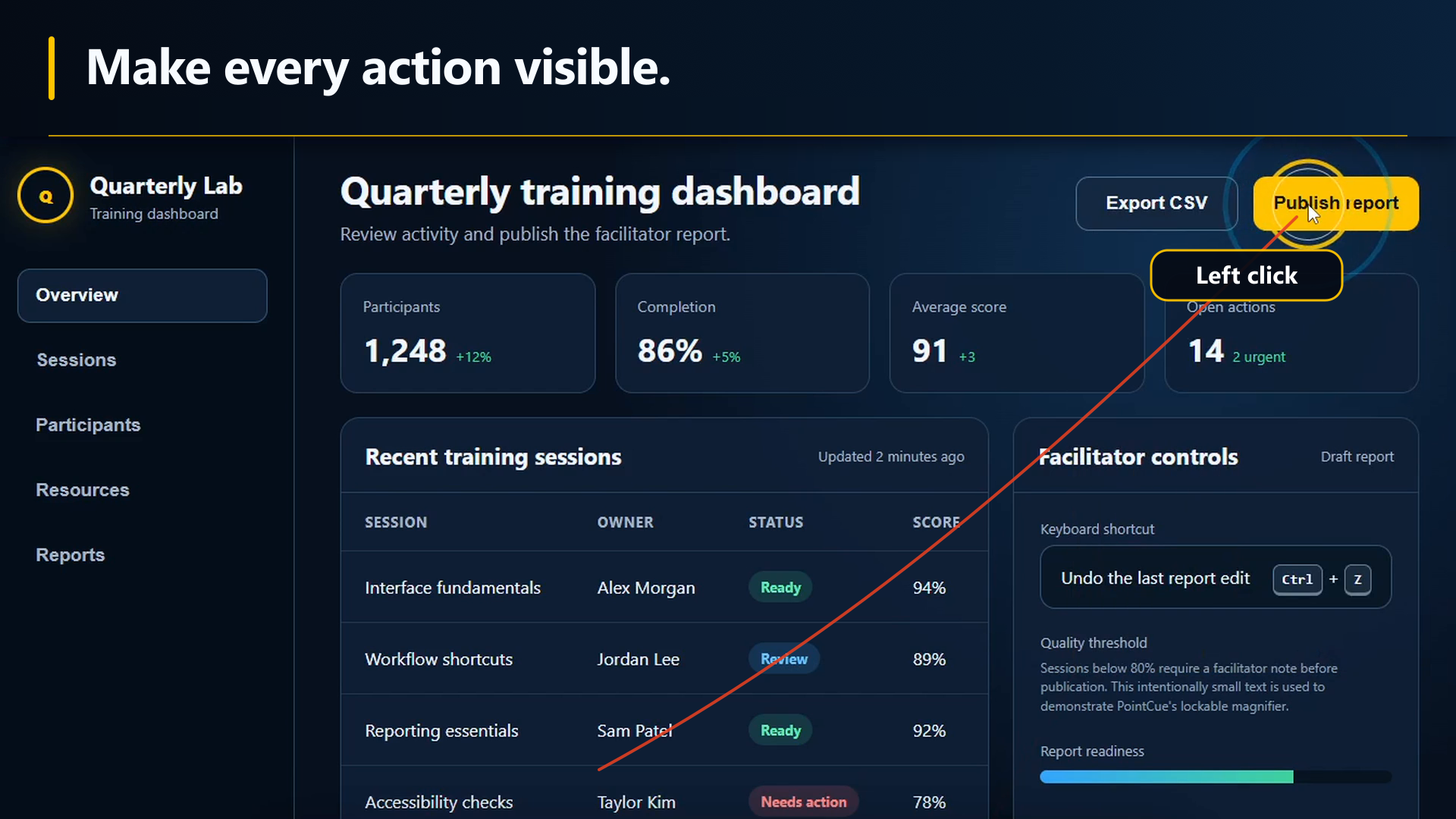
- Cursor halo with adjustable size, shape, and glow
- 12 animated pointer trail styles, with staggered multi-strand trails
- Click and scroll ripples, with text-label equivalents
- Laser pointer and 6 custom pointer shapes
Screen tools
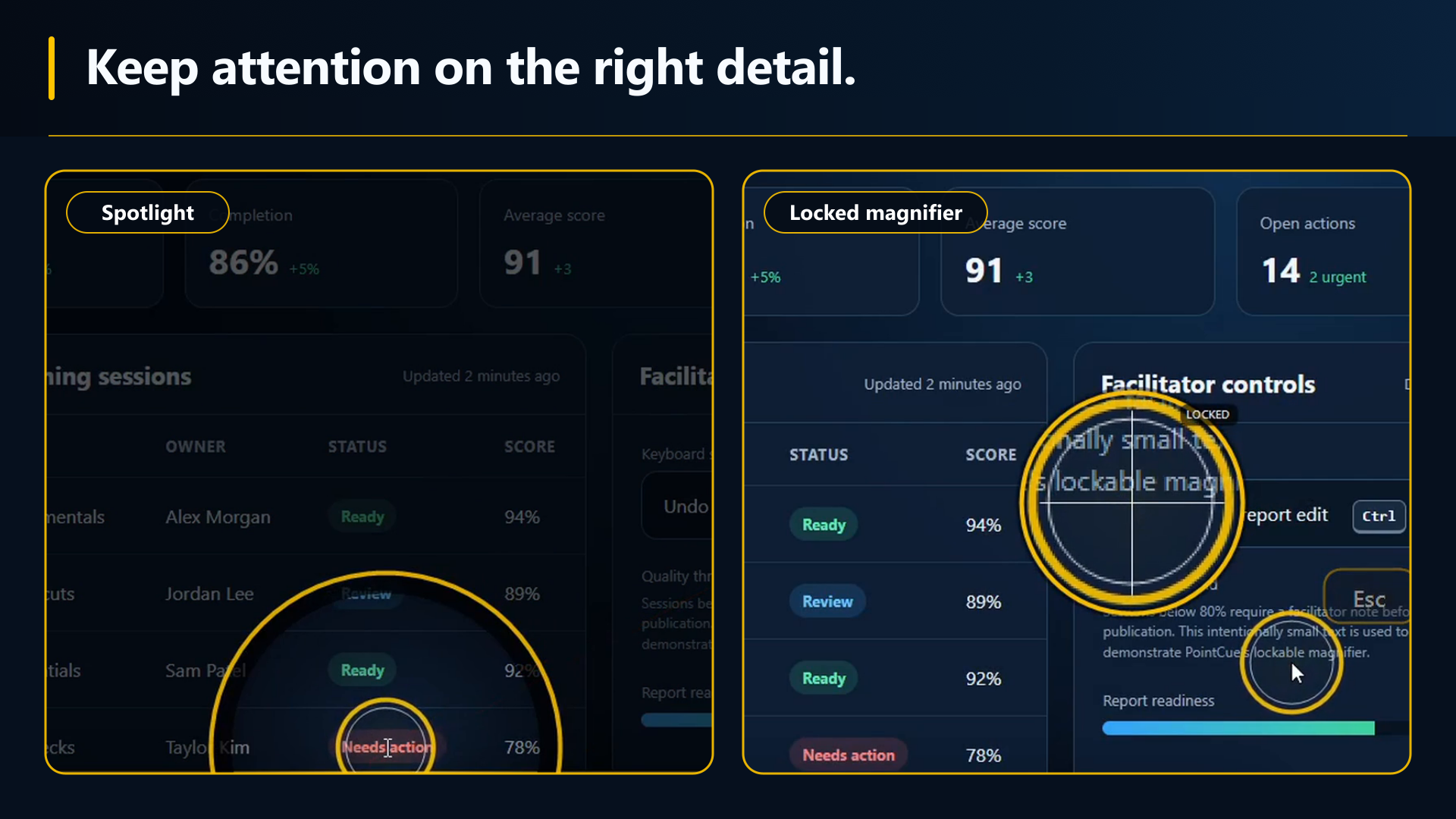
- Spotlight to dim everything except your pointer
- Window Spotlight keeps the currently focused window clear as you switch apps
- Focus/Blur with a resizable shape or tilt-shift band, and multiple blur effects
- Magnifier with an optional lock to freeze the lens
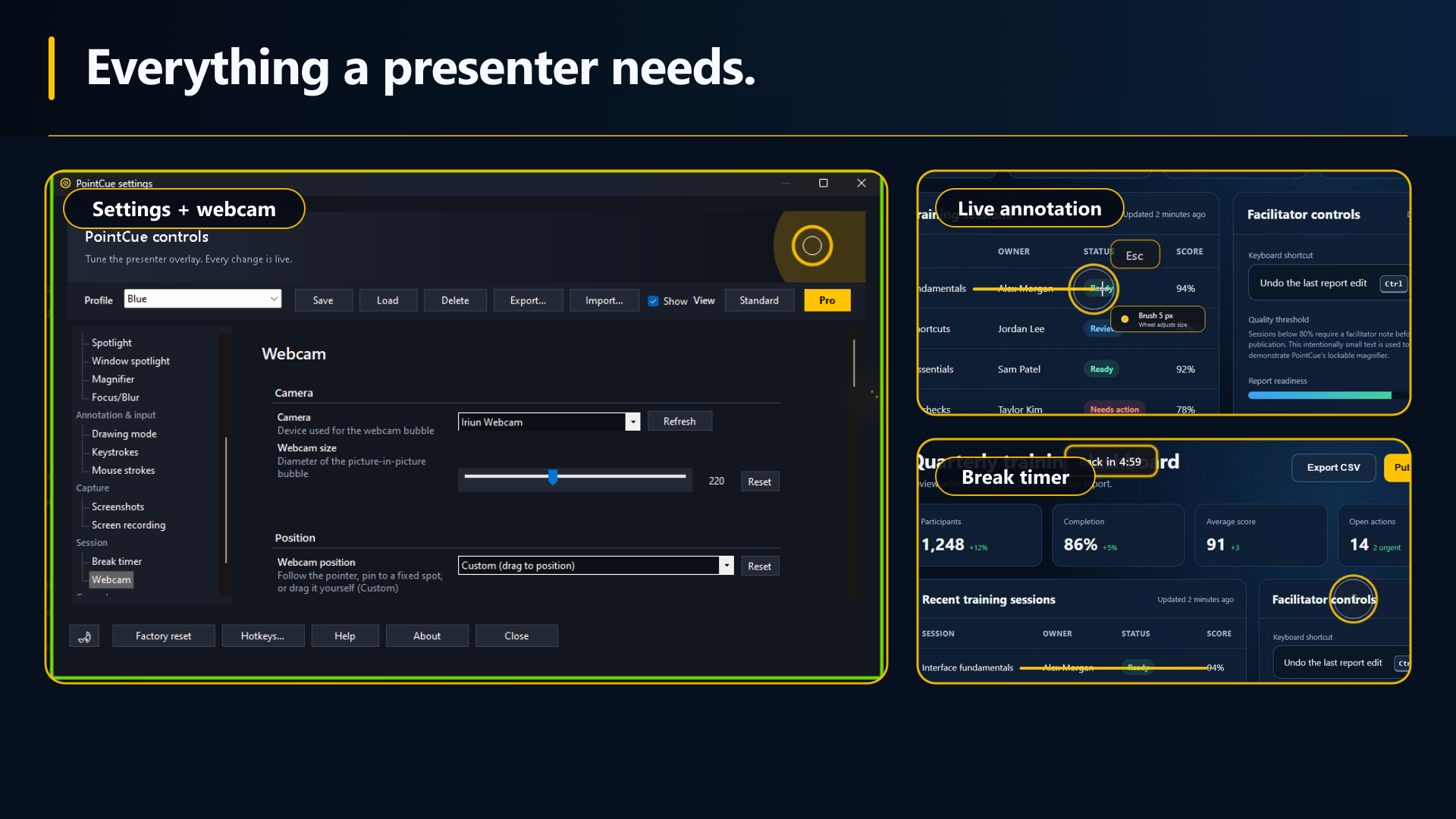
- Picture-in-picture webcam bubble
Annotation & capture
- Drawing mode: lines, arrows, shapes, highlighter, numbered markers
- Optional floating drawing toolbar with docking and auto-hide
- Whiteboard/blackboard backgrounds for drawing mode
- Screenshots and MP4 screen recording, no extra software needed
Workflow
- Fully customizable global hotkeys for every tool
- Named profiles with dedicated quick-switch shortcuts
- A shared Global Theme keeps colors and shapes coordinated
- Standard/Pro view in Settings, from the essentials to every fine-tuning control
- Your configuration and enabled tools are restored for your next session
Privacy and permissions
PointCue works locally on your Windows PC. It does not upload presentation content, captures, camera video, audio, keystrokes, or mouse activity.
Keyboard and mouse
PointCue reacts to input in memory to run your global hotkeys and draw the cues you choose. It does not create, sell, or transmit an input history.
Camera
The webcam is used only while the Webcam overlay is enabled, including a remembered enabled setting. Frames are displayed locally and are not uploaded or saved separately.
Microphone and system audio
These optional inputs are used only during a screen recording you start. Both are enabled by default and can be switched off in Settings. Audio is written only to the local MP4.
Screenshots and recordings
Captures are created only when you request them and save to the local folders shown in Settings. PointCue does not upload them.
Full desktop access
Windows shows this because PointCue is a desktop overlay that uses transparent windows, global hotkeys, pointer cues, screen capture, and notification-area operation.
Account and internet
No PointCue account is required. Core tools work offline. Microsoft Store licensing, purchase, and update services may use an internet connection.
Frequently asked questions
The practical details trainers and tutorial creators usually need before trying PointCue.
Does PointCue work with Teams, Zoom, OBS, PowerPoint, and browser demos?
Yes. PointCue runs over the Windows desktop, so its cues can appear in full-desktop screen shares and recordings. If you share only one application window, separate overlay windows may not be included; share the full desktop when viewers need to see every cue.
Does PointCue record or upload my keystrokes?
No. PointCue reacts to input in memory to run your hotkeys and show only the on-screen cues you enable. It does not create, sell, store, or transmit a keystroke history. Remember that viewers can see any keystroke cue you deliberately display during a share or recording.
Do I need a camera?
No. The webcam picture-in-picture bubble is optional. PointCue uses a selected camera only while that overlay is enabled, and camera frames are not uploaded or saved separately.
Do I need a PointCue account or a constant internet connection?
No PointCue account is required, and the core tools work offline. Microsoft Store licensing, purchase, and update services may use an internet connection.
Is PointCue a subscription?
No. PointCue offers a free trial and a one-time purchase with no subscription. The displayed price is $9.99 in the US Microsoft Store; local pricing can vary by market.
Which operating systems does PointCue support?
PointCue is designed for Windows. It is distributed through the Microsoft Store.
PointCue support
For setup, privacy, purchasing, or feature questions, use the DesignAlign contact form and include “PointCue” in your message.
Want the full cheatsheet first?
Every tool, shortcut, and setting is covered in the PointCue User Guide — read it online or keep a PDF copy on hand.
Ready to try PointCue?
Get it on the Microsoft Store, or read the full cheatsheet and user guide first.